Build a Fun Duotone Image Editor Web App
Creating Hue Two: A Duotone Zoo, a playful duotone image editor, was an exciting mix of creativity, coding, and collaboration—with AI lending me a helping hand throughout the process. In this article, I’ll walk through how I built this web app, the challenges I faced, and how AI provided key insights and solutions along the way.
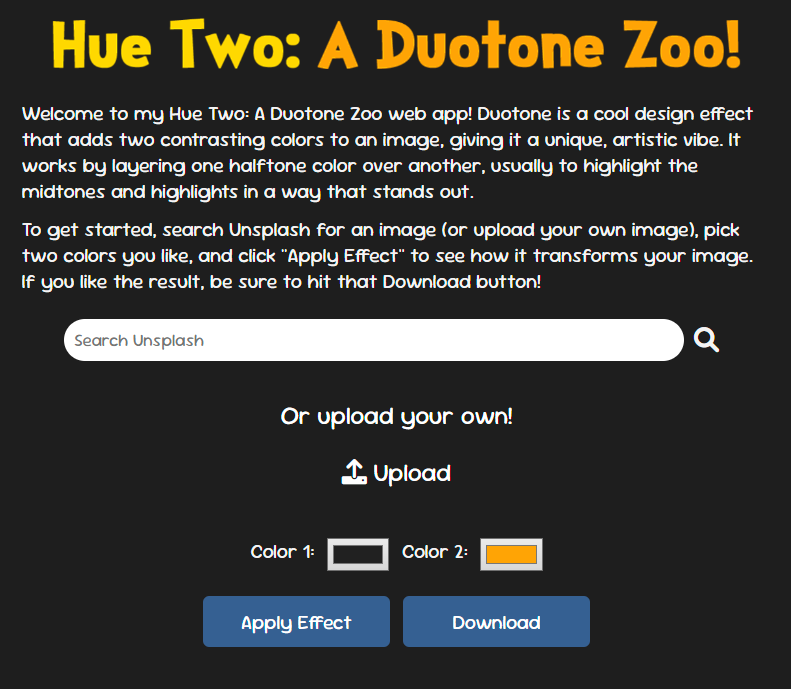
This app is an interactive tool that transforms images into vibrant duotone art. You can upload your own image or search for one using Unsplash, select two custom colors, and watch the magic unfold. It’s designed to be fun and to use, ideal for anyone who wants to add artistic flair to their images.
How AI Helped Build This App
As I mentioned, building this app wasn’t a solo effort—I had an AI assistant guiding me through various stages of development. Here’s how AI contributed:
- AI helped me come up with the app’s concept and even suggested its whimsical name, “Hue Two: A Duotone Zoo” based on my love of Dr. Seuss :)
- It offered a clear, step-by-step explanation of how to manipulate image data using the HTML5 Canvas API.
- Whenever I hit a snag, such as cross-origin resource sharing (CORS) issues or functions not being detected, AI pinpointed the problem and guided me toward solutions.
- It also provided tailored advice, like restructuring my project folder and ensuring environment variables were correctly set for both local and production environments.
- Lastly, it created comprehensive inline documentation for all of the app’s code!
It felt like having a junior developer by my side, handling much of the heavy lifting and routine tasks, which freed me up to focus on crafting the user experience and styling the application. Sure, I can write CSS media queries to make the app mobile responsive, but why not delegate that (repetitive) task to my AI assistant and focus my energy on the bigger picture?
Step-by-Step: Building the App
Step 1: Laying the Foundation
The project started with a simple HTML, CSS, and JavaScript setup. The app’s core components included:
- A file input for uploading images.
- A search bar for fetching images from Unsplash.
- Two color pickers for selecting duotone colors.
- A canvas element for previewing the image transformations.
Step 2: Adding the Duotone Effect
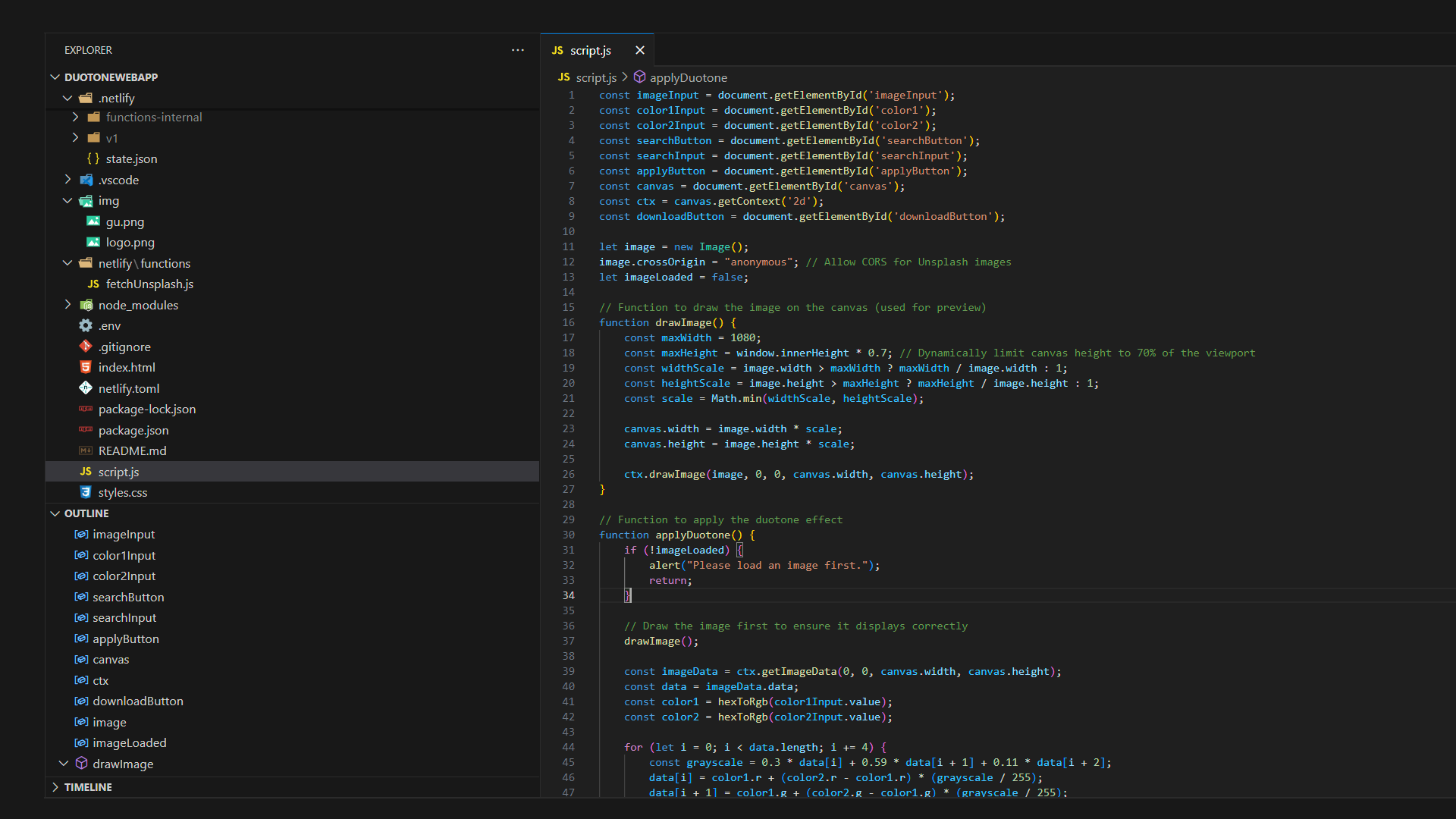
The HTML5 Canvas API became the backbone of the app. Using AI’s guidance, I applied the duotone effect by first converting each pixel to grayscale and then mapping it to a gradient between the two selected colors. Here’s a snippet of the logic:
const grayscale = 0.3 * data[i] + 0.59 * data[i + 1] + 0.11 * data[i + 2]; data[i] = color1.r + (color2.r - color1.r) * (grayscale / 255);AI explained this calculation clearly and even helped debug rendering issues when the preview didn’t look quite right.
Step 3: Securing the Unsplash API Key
To fetch random images from Unsplash, I needed to securely handle my Unsplash API key. AI recommended using Netlify serverless functions. Here’s the code for the function.
const axios = require('axios');

exports.handler = async function(event, context) {
    const { query } = event.queryStringParameters;
    const apiKey = process.env.UNSPLASH_API_KEY;

    try {
        const response = await axios.get(`https://api.unsplash.com/photos/random`, {
            params: { query },
            headers: { Authorization: `Client-ID ${apiKey}` }
        });
        return {
            statusCode: 200,
            body: JSON.stringify(response.data),
        };
    } catch (error) {
        return {
            statusCode: 500,
            body: JSON.stringify({ error: 'Failed to fetch from Unsplash' }),
        };
    }
};
Step 4: Deploying on Netlify
Netlify made deployment seamless. AI walked me through:
- Connecting my GitHub repository to Netlify.
- Configuring a
netlify.tomlfile to specify thefunctionsdirectory - Adding the Unsplash API key to Netlify’s environment variables.
[build] functions = "netlify/functions"Within minutes, the app was live and accessible to the world!
Challenges and Solutions
- Image Processing Performance: The initial image manipulation process was slow for large images. AI suggested scaling the image to a maximum width/height before applying the effect, significantly improving performance.
- CORS Issues with Unsplash: Directly fetching images from Unsplash in the front-end caused CORS errors. AI recommended using a serverless function as a proxy to solve this problem. Nice!
- Debugging Environment Variables: While testing locally, the Unsplash API wasn’t working. AI helped identify a missing
.envconfiguration and explained how to set up environment variables correctly in Netlify.
Final Touches: Design and User Experience
The app’s design was crafted to be simple and fun:
- App Logo: Sticking with the Dr. Seuss theme, I found a free font online that mimics the signature lettering style from his books and used it to design the text-based logo.
- Typography: I picked Google Fonts’ Sour Gummy, giving the app a playful look.
- Buttons: Colorful buttons with hover effects make interactions more engaging.
- Responsive Layout: The layout adjusts beautifully on both desktop and mobile devices.
Key Takeaways
Collaborating with AI was like having a 24/7 coding mentor. It wasn’t just about getting answers—it was about learning. Here’s what stood out:
- Faster Development: AI accelerated problem-solving, from debugging to structuring serverless functions.
- Deeper Understanding: AI didn’t just give solutions; it explained them, helping me grow as a developer.
Want to see the app in action? Check out Hue Two: A Duotone Zoo here. The source code is available on GitHub. Feel free to fork, contribute, or use it as inspiration for your own project!
Building “Hue Two: A Duotone Zoo” was an incredible learning experience, amplified by the power of AI. If you’re a developer, designer, or just someone curious about blending creativity with code, I hope this inspires you to dive into your next project—maybe with a little help from AI too. 😊